No matter how sprightly and speedy your laptop was when you first bought it, it will inevitably slow down to a sluggish pace eventually. And it’s when you reach this point that you can’t really put off an upgrade any longer.
However, there is an alternative way forward: Install Linux. While it’s not as well known as Windows or macOS, Linux has been around since the early 1990s and is comfortable running on laptops and desktop computers. It’s capable, well maintained and regularly updated, and completely free to use.
Importantly for our purposes here, Linux is also lightweight. Its demands on your system can be much lower than software from Microsoft and Apple, and that means your old laptop components can be given a new lease of life.
Due to the proprietary way Apple fuses its hardware and software together, this is really only something to attempt on Windows laptops (you can install Linux on a Mac, but it’s complicated—especially on newer models). So, if you have a creaking Windows laptop that needs a Linux refresh, here’s how to go about it.
What is Linux?
Linux is actually a collective name for a whole host of different-but-related operating systems known as distros. You don’t actually install Linux, you install one of the distros in the Linux family: Ubuntu, Linux Mint, Debian, and Fedora are some of the most popular, though there are dozens to pick from.
Linux isn’t as widely used as either Windows or macOS, and so generally, you’ll find less software available for it. There’s no Photoshop for Linux, for example, though there are some very capable (and free) alternatives. That said, several big name apps are available on the Linux platform, including Google Chrome and Spotify.
Some Linux distros focus particularly on being as lightweight and as minimal as possible, and these are the ones to look for if you’re wanting to save an old laptop. They’ll go easy on the aging components in your system, and you should see snappier performance than you do with Microsoft Windows.
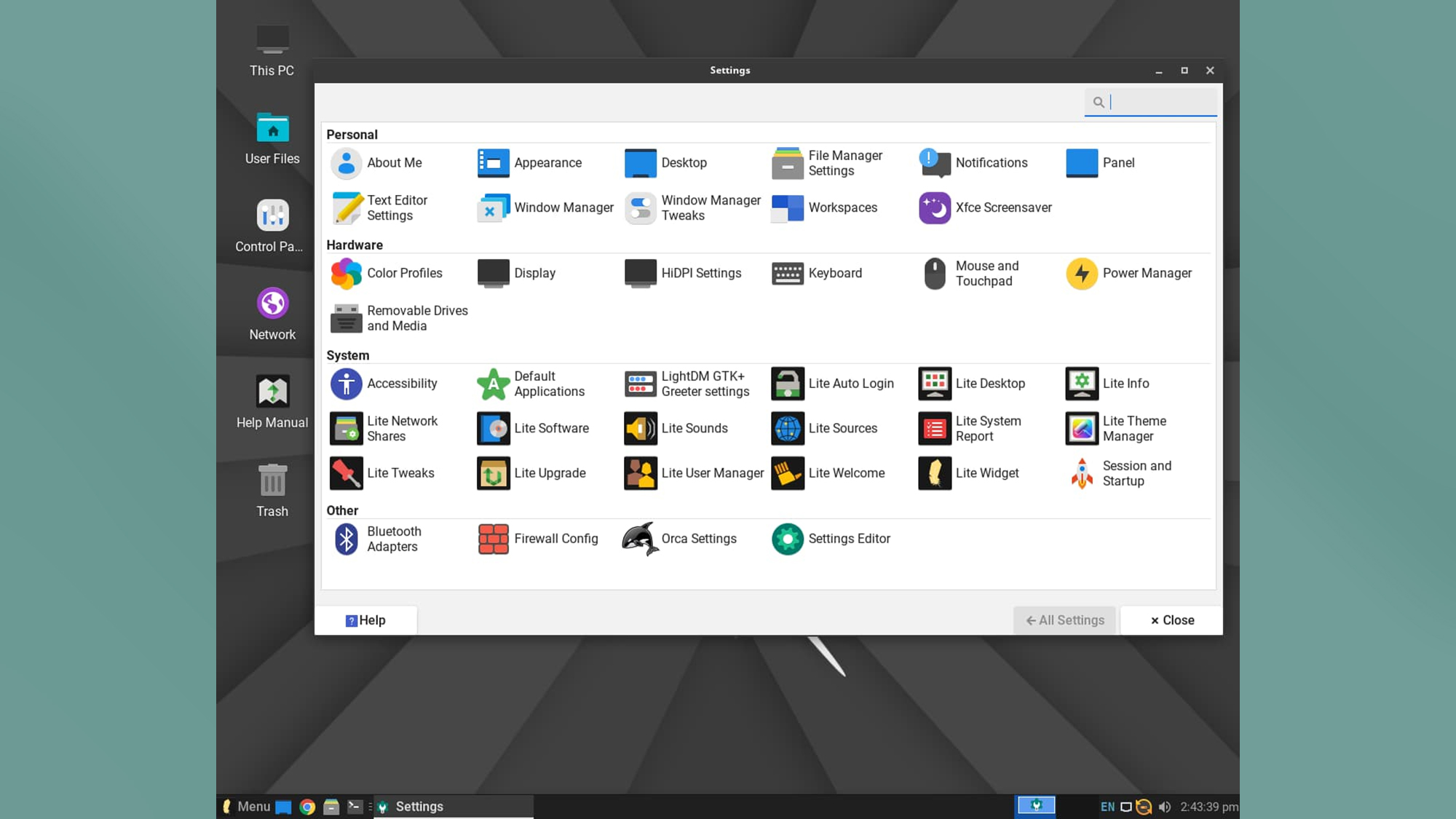
Your options here include Puppy Linux, Lubuntu, and the appropriately named Linux Lite—and you’ll be able to find several other lightweight options if you search around on the web. There’s no right or wrong answer when it comes to which one to pick. Have a look at the screenshots and documentation and decide which one fits your current needs.
We’d recommend all three mentioned above, but whichever Linux distro you go for, you should find plenty of help along the way. Generally speaking, Linux users (and distro developers) are generous and community-spirited, and if you need assistance with anything, there are multiple resources to turn to online.
How to install Linux
Whatever flavor of Linux you’re installing, first you need to back up everything currently on your Windows laptop: A Linux install will wipe everything currently on your hard drive. Thankfully, backing up is easier than it used to be, and we’ve got a full guide here. If you use something like OneDrive, Dropbox, or Google Drive, you might already be covered.
With all your data safely copied elsewhere, there are a few different ways to install Linux over the top of Windows, but the most straightforward is to grab a spare USB drive and put all the Linux installation files on it. Exactly how you go about this will depend on the distro you’re using, but the steps are broadly similar, and each distro will usually come with extensive instructions for installing it.
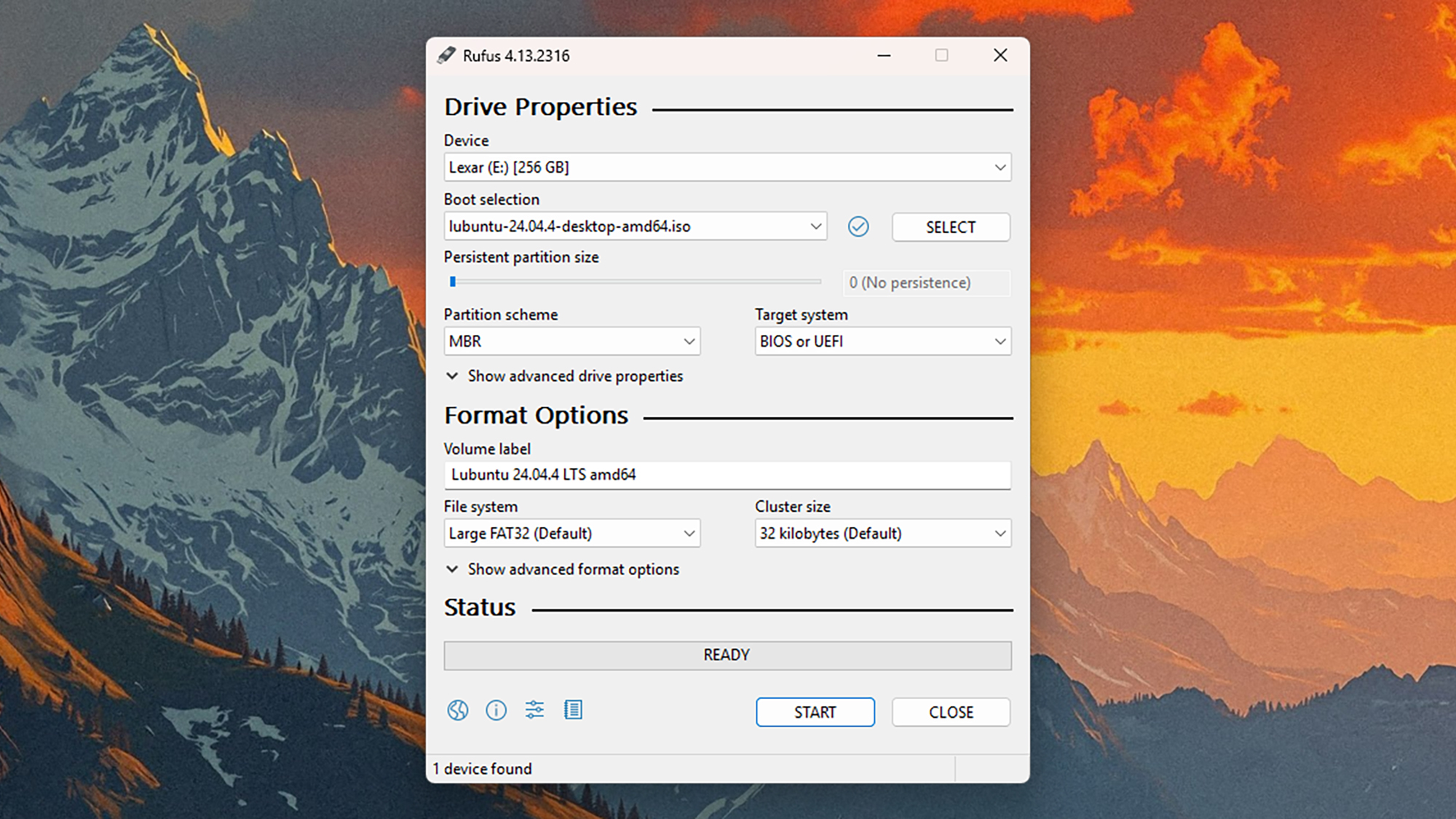
Let’s take Lubuntu as an example, as the installation process here is fairly typical. The first step is downloading an image (or ISO) of the distro to your computer (it can be the one you’re upgrading or a different one). This image is simply the Linux software itself (and it will be quite a hefty download), though it’s not yet in a form you can run an installation program from.
Next, you need an app to put the image on your USB drive. The Windows tool usually recommended for this is Rufus, which is free to download and use. Once it’s up and running, you can simply point it towards the Linux distro image you downloaded earlier, and your connected USB drive, and it will take care of the rest.
The final step is booting your laptop from the USB drive rather than its hard drive, which will then present you with the Linux setup program, which you can follow step by step. How you switch to booting from USB will depend on your laptop, but typically you press a key like F2 or Del while the laptop is starting up—look for a message on screen right after turning your computer on, or check online for further instructions.