
If Google keeps bothering you to pay for cloud storage, it’s not just you. You only get a relatively measly 15GB of storage free of charge with a Google account, and you have to split that across Gmail, Google Photos, and Google Drive.
That 15GB can fill up quickly, but it doesn’t have to. We’ve curated a few tricks to help trim down space in all three of these key Google apps. That can mean you won’t have to pay Google every month for file space in the cloud.
These tips focus on the various web apps, but you’ll find you can access the same features from the mobile apps too (though the buttons and menus may be laid out differently).
Gmail
In Gmail, scroll down to the bottom of your inbox and click the X% of X GB link to see how much space Gmail is using (the exact label will vary depending on your Gmail usage). Once you know the severity of the situation, you can start doing something about it.
The search box up at the top of the screen is your main tool here: Click the slider icon to the right of it to see your options. You can search for a particular sender, for example, or a particular email subject if there are groups of emails you know you no longer need. Use the Size field to look for large emails, and the Has attachment box to find emails with bulky files attached.
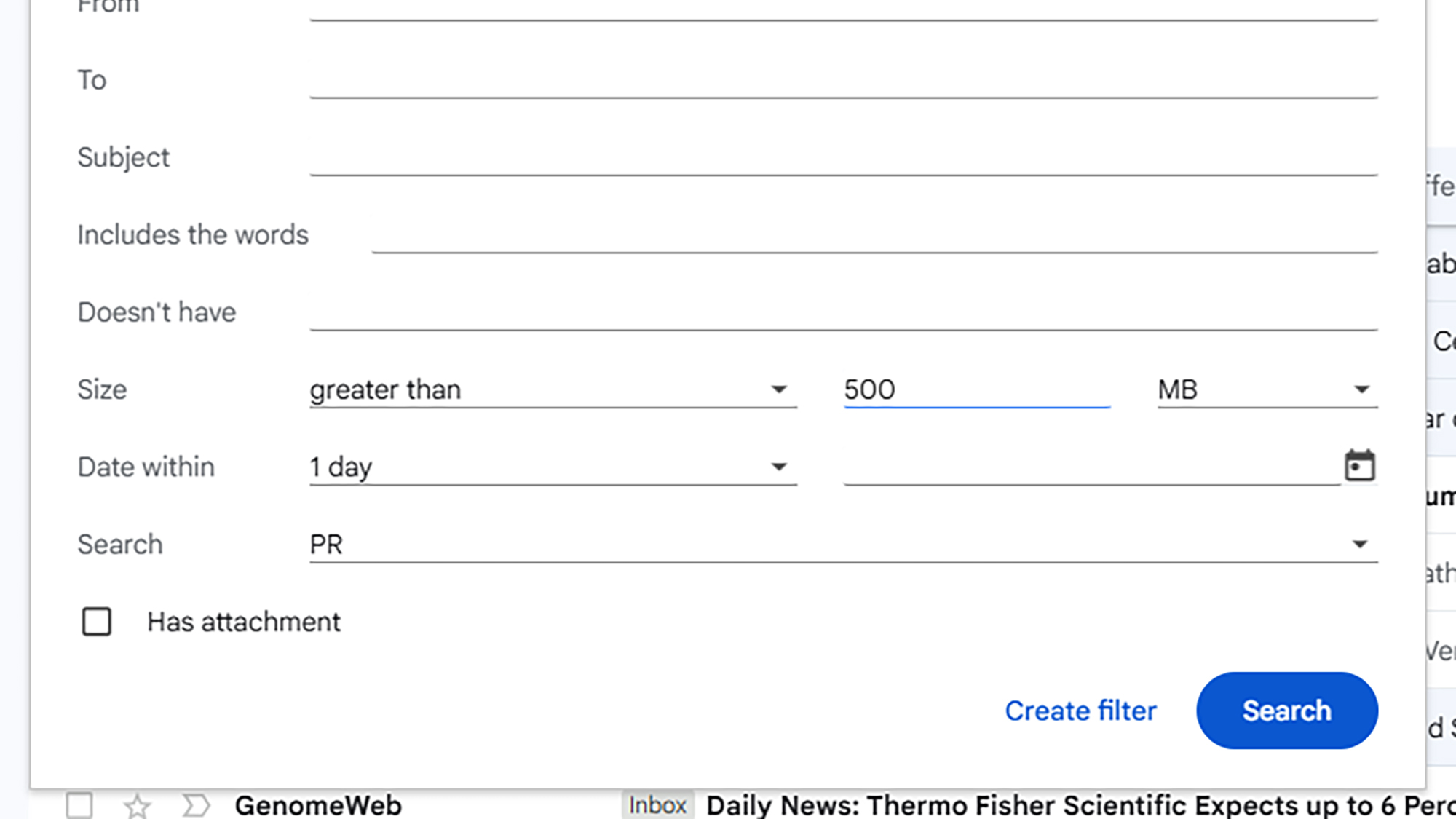
Once a certain set of search results are shown—all the newsletters you’ve ever been sent from a particular site, for example—click the group selection box up in the top left corner, then click the Select all link at the top. With that done, you can click the trash can icon to delete all the messages at once.
You can also click All Mail (on the left) and then the older arrow (top right) to go back through time. It might take you a while to get all the way to the oldest emails in your inbox, but you can probably now do without a lot of them (note that there’s also a date option in the search panel).
Google Photos
Google Photos is actually pretty helpful when it comes to clearing out storage and saving you some room. You can see how much cloud storage space the app is taking up by clicking on the storage bar at the bottom of the left-hand navigation pane.
The same screen that tells you how much room Google Photos is taking up also gives you some suggestions for clearing out space. You might see links including Large photos and videos, Screenshots, Blurry photos, and Unsupported videos. Click on any of these links to see matching images and video clips, which can then be deleted if you want.
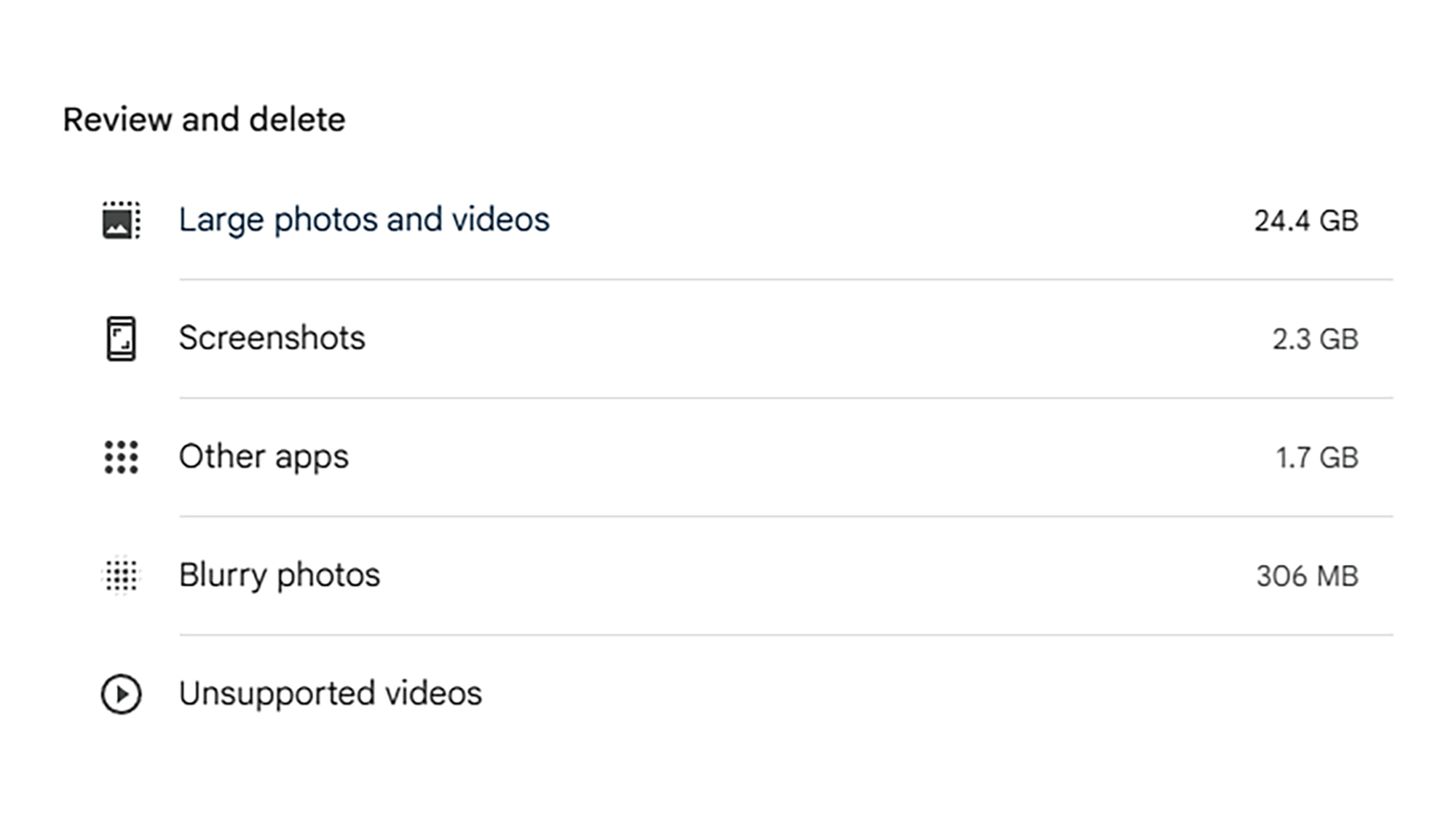
There should also be a link labeled Convert existing photos and videos to Storage saver. Click on this to compress your existing photos and videos to free up space. Note that this is an operation that can’t be undone, so make sure you want to do it—you can follow the Learn more link to get information on exactly how it works.
Note that there won’t be any duplicates in Google Photos—the app makes sure these are filtered out automatically at the upload stage. You can of course use the standard search tool to find and delete photos and videos as well. Maybe search for a year or month and select the files you don’t really need any more via the check boxes. Use the trash can icon (top right) to delete them once selected.
Consider printing some of your favorite photos while you’re at it.
Google Drive
Over to Google Drive, and here you get the same storage bar on the left-hand navigation pane as you do in Google Photos. Click on the bar to see a breakdown of how your cloud storage space is being used up, including how much Google Drive accounts for.
Underneath the storage breakdown, you’ll see the biggest files currently saved in your Google Drive account, with the largest at the top. If you see anything you know you don’t need any more, you can click on the filename and then on the trash can icon at the top of the list, freeing up the space.
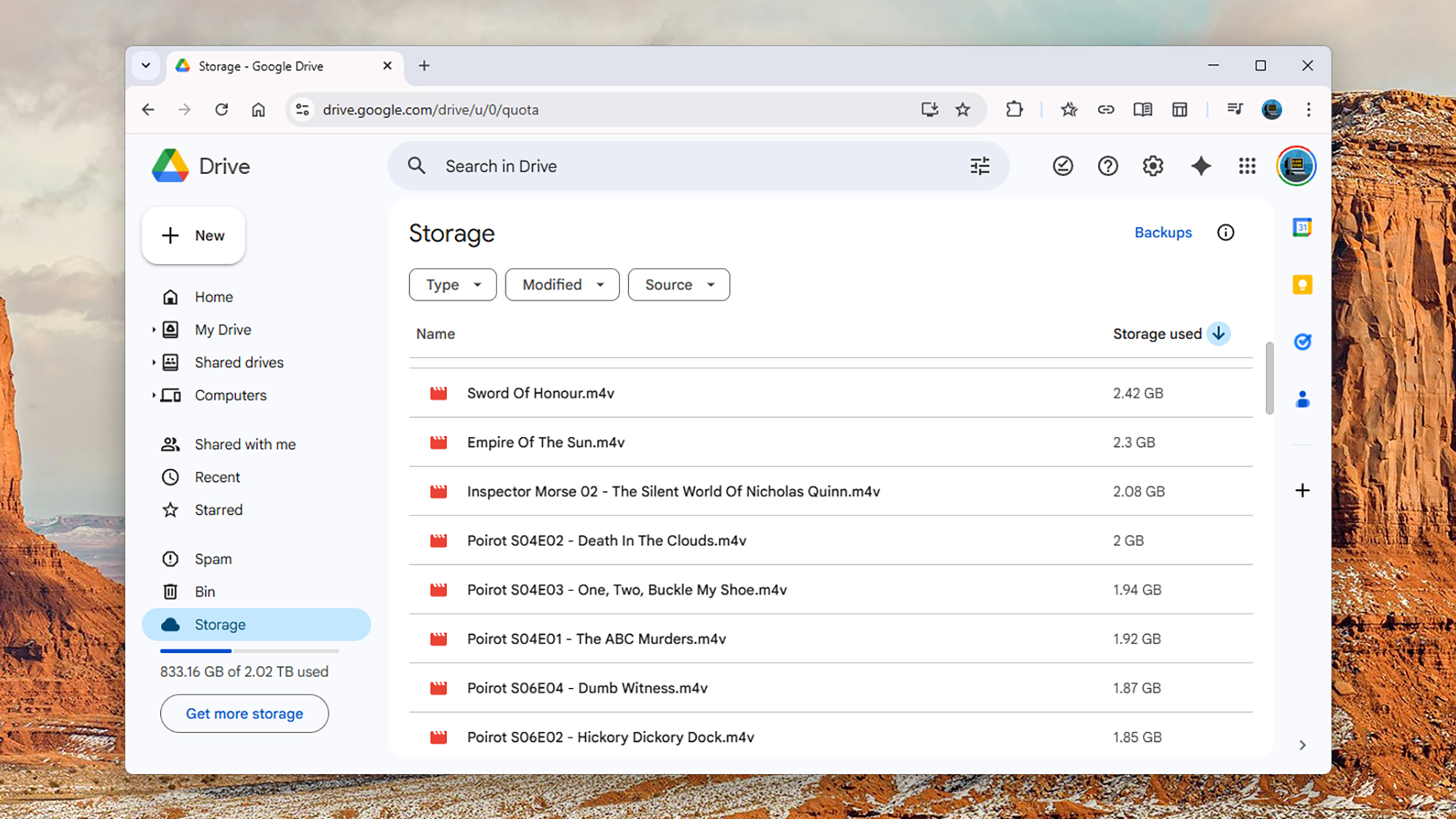
You can do your own investigating by clicking on the Home link on the left, then using the search bar up at the top: Click the sliders icon just to the right of the search bar to see all the options. You can look for particular types of files for example (like videos), or look for files older than a certain date.
On every search result page you can sort by Date modified (so you can quickly get to the oldest and most out of date files), and on every folder view you can sort by File size (so you can quickly get to the biggest files). If you need to delete entire folders at once, click on the folder name at the top of the screen, then Move to trash.
Use alternative apps
There is a strategy you can use across all of these apps to free up space, which is to use alternative apps. You could even use the Google apps to sync your files somewhere else (like your laptop), and then back them up in a different way using a method of your choice—maybe an external hard drive, perhaps.
You can easily download individual files and folders from Google Drive and Google Photos, but getting your emails out of Gmail is a little more difficult. One way of doing it is to use a desktop email client (instructions here), but bear in mind if you delete emails in Gmail the local copies will be deleted to, by default—if you want to keep them, export them first.
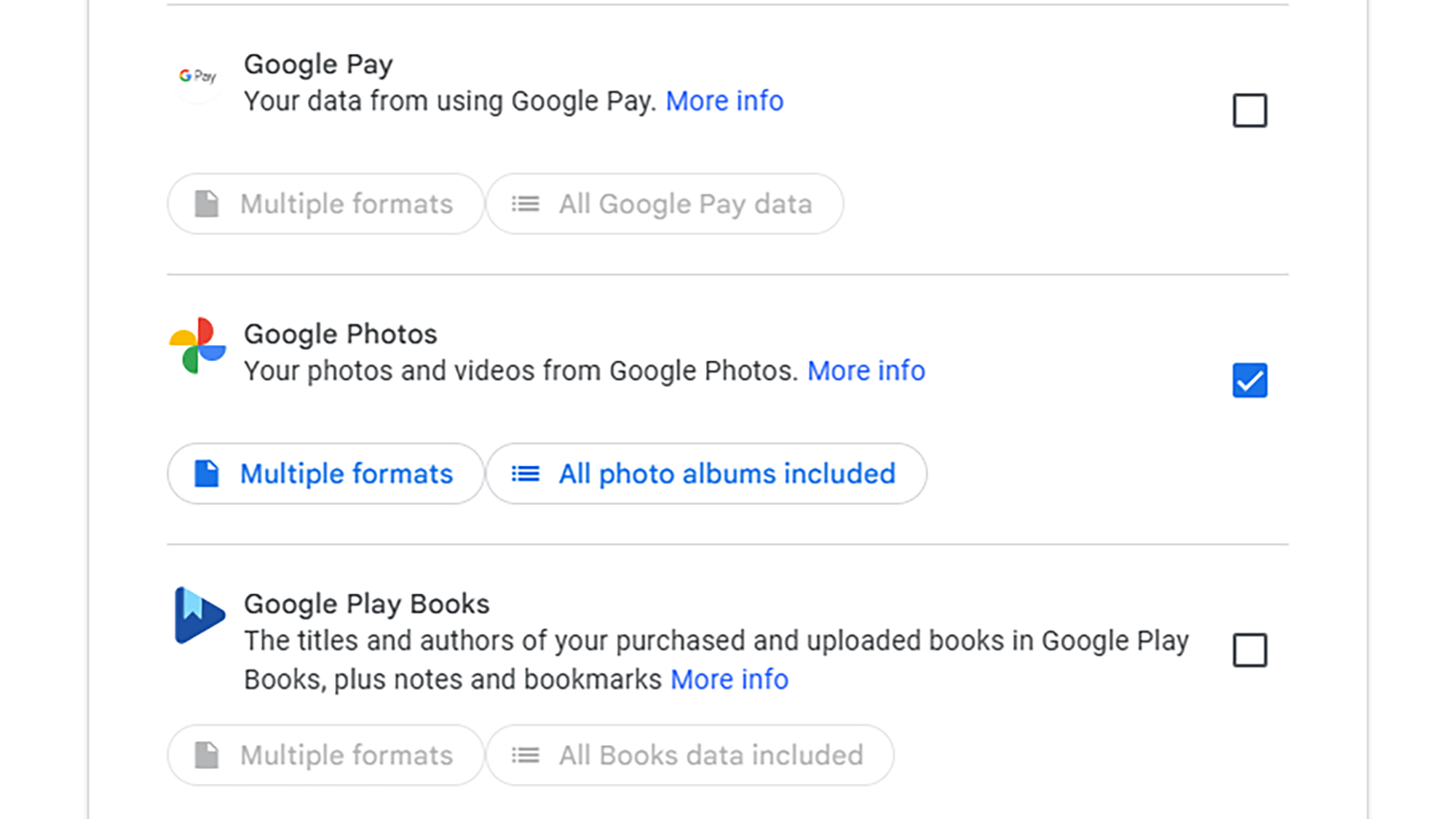
There’s also the very useful Google Takeout service: From this web portal you can select Drive, Mail, and Google Photos to download everything from the three apps and save them to a local computer. When that’s done, you can delete files from the cloud (just make sure your computer copies have backups somewhere else).
For the most comprehensive clean out of your Google cloud storage, you’ll probably want to combine a few different methods for deleting your files—and these apps offer plenty of help along the way too. If you stay below the 15GB limit then it’s one less subscription to have to worry about or pay for.