
The RSS (Really Simple Syndication) protocol has been giving users a way to keep up with their favorite websites for decades. It essentially presents all the new articles on a specific site in chronological order as they’re published, so you can read through or skip over them as you like.
It’s also, by the way, the main way that podcast feeds are published, but it was originally designed to manage web feeds. While RSS isn’t quite as widely used anymore, with social media or newsletters now more commonly used to promote articles on a site, the standard is still appreciated by those who want a simple, clutter-free way of managing their online reading.
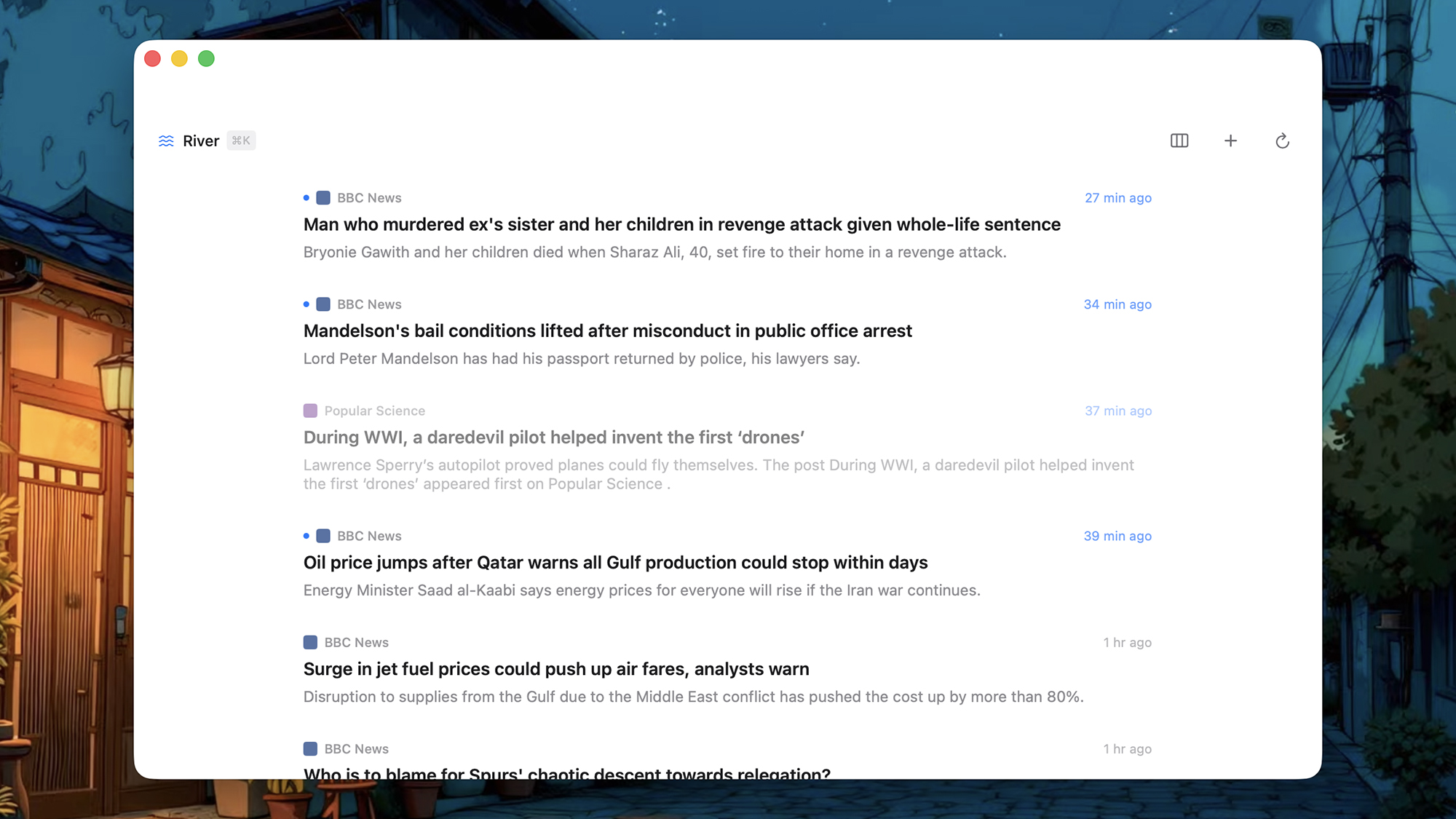
To use RSS, you need an RSS reader, and Current is one of the latest to appear. Available for iPhone, iPad, and Mac, its intention is to let content “flow” like a river. “Engage with what interests you, let the rest drift past,” is the philosophy—it could be perfect if you like the idea of RSS but don’t want to be buried by a pile of articles.
Current will set you back a one-off fee of $9.99, which gives you a licence to use it across all your Apple devices. There’s no free trial available, but this article should give you an idea of whether it’s worth the investment for you.
Getting started with Current
Once you’ve grabbed Current from the Apple App Store, there are a few things you need to get familiar with. For a start, unread counts are out—don’t worry about how many articles you’ve got sitting unread, because Current won’t tell you. Instead, there are auto-expiry rules: News expires in hours, while essays last several days.
The app uses the term ‘waterline’ to refer to the border between new and old content, so everything above the waterline has been published since you last opened the app. The ‘river’ is the main flow of news, and you can customize this in various ways, as we’ll get on to further down.

When Current opens up for the first time, you can add feeds by picking one of the recommendations, clicking Add a Source to drop in an RSS feed manually, or by using the Import OPML or Connect Feed Service to import feeds from another app. With Add a Source, if you don’t know the specific RSS feed URL, just paste in the website homepage and Current does the rest.
For each feed that you add, you can set what’s called its ‘velocity’: Basically, how long it stays around in the river for. Your choices here are Breaking, News, Articles, Essay, and Evergreen. Breaking stories disappear after three hours, evergreen stories after seven days, and the other types somewhere in between. When you’re happy, click Add to River.
Once the river itself opens up, you’ll notice how minimal it is. You can tap and click through on articles to read them. You may see the full article or just a snippet, depending on the feed, and if needed you can open up Safari to read the entire article. There are also quick links for saving articles, or releasing them (pushing them out of the river).
If you’re on macOS, you can use keyboard shortcuts too (R to release, S to save), and click the triple-rectangle icon in the top to switch to a two-pane layout (known as sift mode) that shows both the river and the currently selected article. Click the River button in the top left to jump between the app sections and to search through articles.
Customizing and tweaking Current
Current may be minimal in appearance, but there are still plenty of settings and customizations you can play around with. You can, for example, set up multiple currents. One tech current and one sports current perhaps, or different currents for work and leisure reading. On macOS, click Current > Settings > Currents to manage these different feeds.
To create your first current, click the small + (plus) icon down in the lower left corner. You’ll be asked to give your new current a name, and to pick the sources that should go into it. This new current is then available from the main app menu, but you’ll always have the main River section that displays all sources.
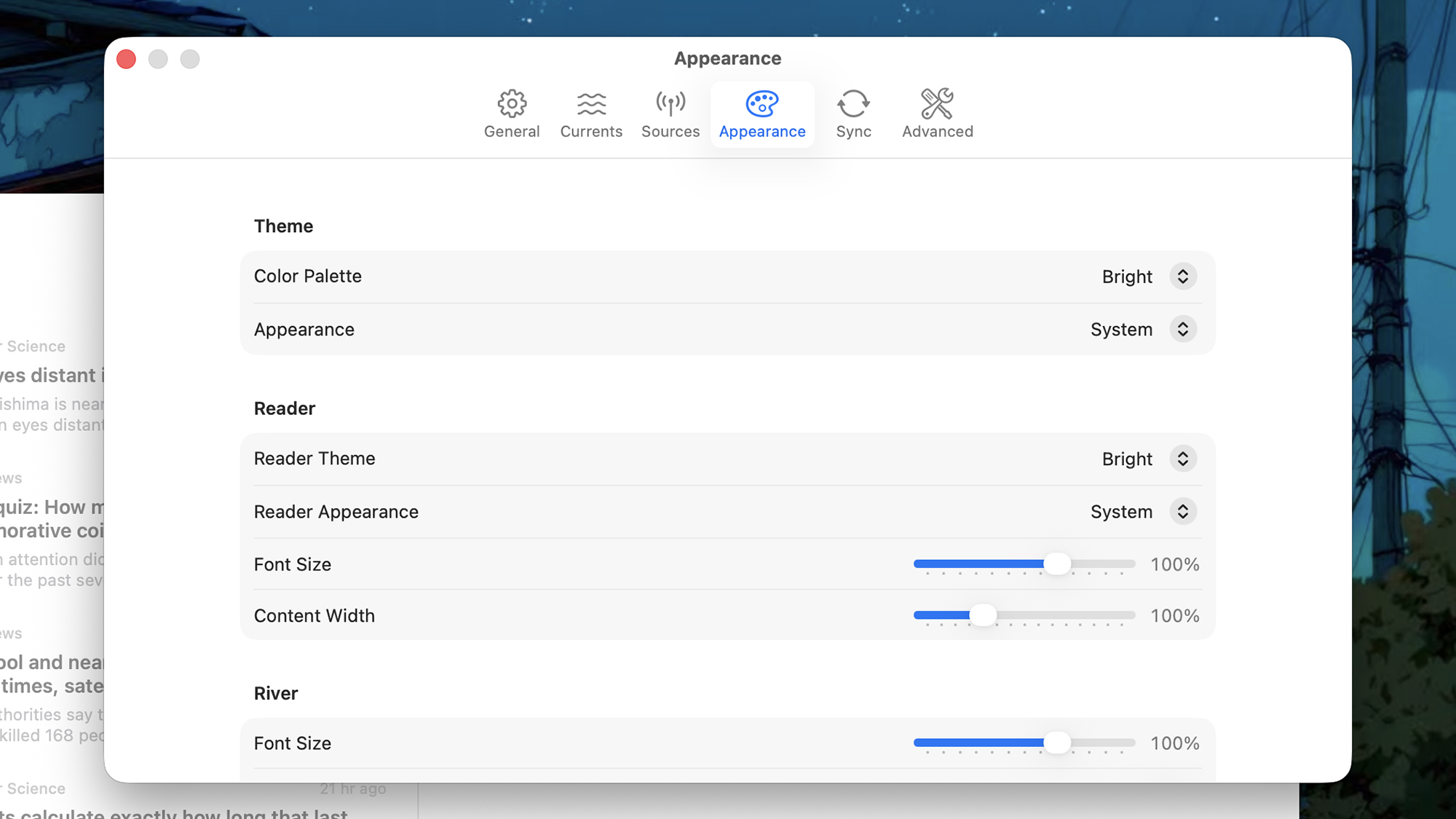
On the General tab, you can tell Current how often you want it to check for new articles, and set the default view that appears when you open the app. You can also opt to see the oldest articles at the top of the feed, while the Sources tab is where you can add new websites to monitor and manage existing ones.
Under Appearance you’ll find quite a few ways to tweak the look of the app. There are nine different color schemes to choose from under Reader Theme, and you’re able to make tweaks to the font size and the content width too. The Show thumbnails toggle switch is worth turning on, as it makes the app a little more visually appealing.
Finally, the Advanced tab in Settings is where you can reload released articles (in case you want to bring them back), and clear all the data in the program and start again. There are a similar set of customization settings over on iOS and iPadOS, which you can find by tapping on the cog icon in the top right corner.