Google Maps helps millions of people navigate the world. You can fire up the app when you’re trying to get from A to B, looking for the best cafes or bars around you, or when you need to know just how much traffic there’s going to be on the way home.
The mapping app isn’t just useful when you’re on a journey and away from home though—there’s plenty it can do before you even set off. With a little advance preparation and the help of Google Maps, you can make sure you get where you’re trying to go, and have the best trip possible.
1. Download offline maps
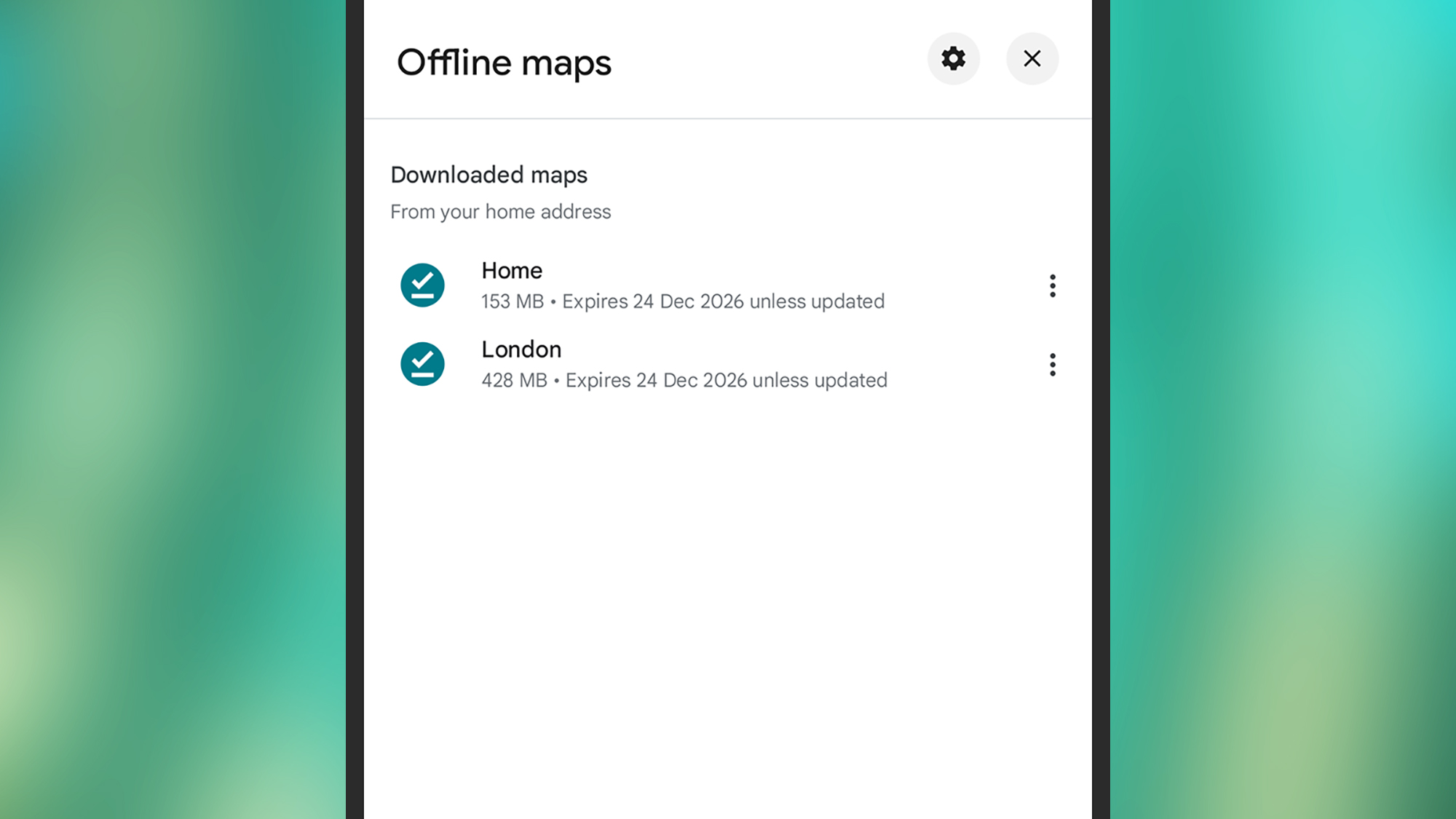
We live in a very connected world, but that doesn’t mean Wi-Fi or even cell signal are always going to be available. That’s where offline maps can come in. These maps are downloaded to your phone in advance, so while they can’t show live info on traffic, they’ll always be available to help you make the right turn.
There’s no point downloading an entire map of the world of course, but you can tell Google Maps which areas to focus on. In the app for Android or iOS, tap your profile picture (top right), then Offline maps. You’ll see a list of the maps currently downloaded, and you can tap Select your own map to add somewhere new.
Drag and zoom around the map to find the area you’re heading to on your next trip. As you move the map around, you’ll be told how much local storage space the cached map is going to take up—and when you’re happy with your selection, you can tap Download to save it to your phone.
From the offline maps list, you’re able to tap the three dots to the side of any map to update, rename, or delete it (you can also tap directly on it to view or edit it). Tap the gear icon up in the top right corner, and there are options for managing how your offline maps are updated (you can set this to happen automatically, if you want).
2. Plan journeys in the future

If you’re traveling somewhere in the future—tomorrow, the day after, next week, or whenever it is—you can load up Google Maps to see how long the journey will take. The problem is that the journey time you see is going to be based on current traffic conditions, which may not be the same when you actually set off.
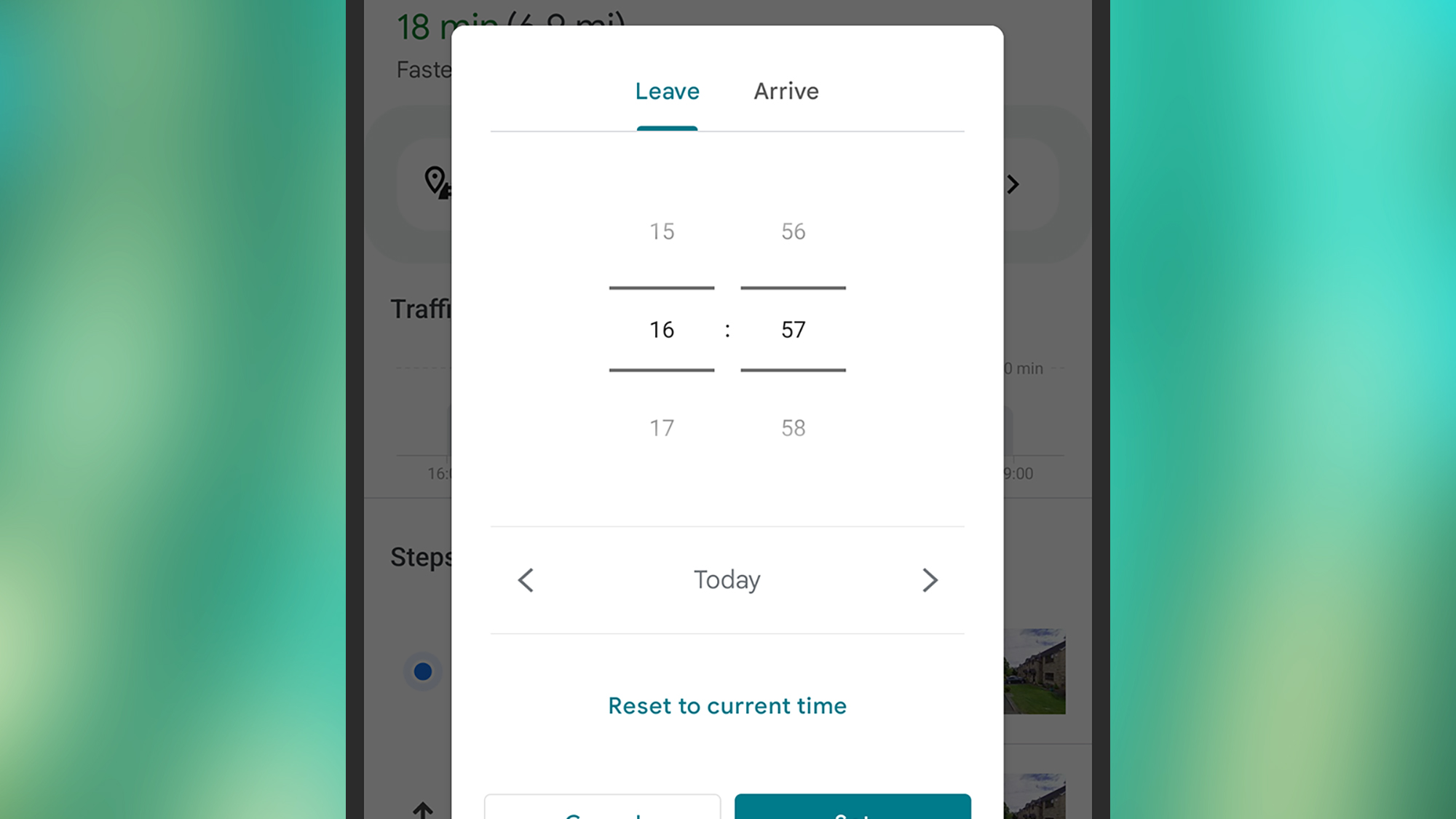
With this in mind, Google Maps lets you see how long a journey time is going to be at some point in the future, and you can do this on Android, iOS, and the web. Once you’ve loaded up the directions as normal, look for the drop-down menu that lets you specify a time and day when you’re setting off (or hoping to arrive by).
While Google Maps can’t predict future traffic conditions, road closures, public transit diversions and so on, it can tell you what you’re typically going to face on that particular day and at that particular time—so you’re less likely to run into traffic congestion in the middle of the night, for example.
Once you’ve set your day and time, you’ll get an estimate of how long the journey is typically going to take, which helps with forward planning. Just remember to reset the timings to the present if you are setting off immediately, which will bring back the current information on traffic and so on.
3. Check how busy areas are going to be
If you’re heading somewhere for shopping, food, drinks, or anything else, Google Maps can actually tell you about busy areas before you actually get there. So if you’re looking to escape the crowds, or alternatively are wanting to visit places with a bit of a bustle to them, you can adjust your plans accordingly.
All you have to do for this one is scroll around the map on Android or iOS. If you’re at the right zoom level, and come across a cluster of places that are all relatively packed with people, you’ll see a “Busy area” label attached. Tap on the label to see details of the place and how its levels of busy change over time.
It’s also possible to check out how busy an individual place is. Tap on a location on the map to select it, then bring up its info card: You’ll see roughly how many people are there currently, based on anonymous reports from phones, compared to the busiest and quietest times for that spot.
You can use the drop-down menu above the bar chart to check out how busy somewhere typically is across the course of the week too—helpful if you’re wanting to pick a specific day to go along to a place. The same panel also gives you information about how long people usually stay at the location, on average.